
For garden and landscaping projects
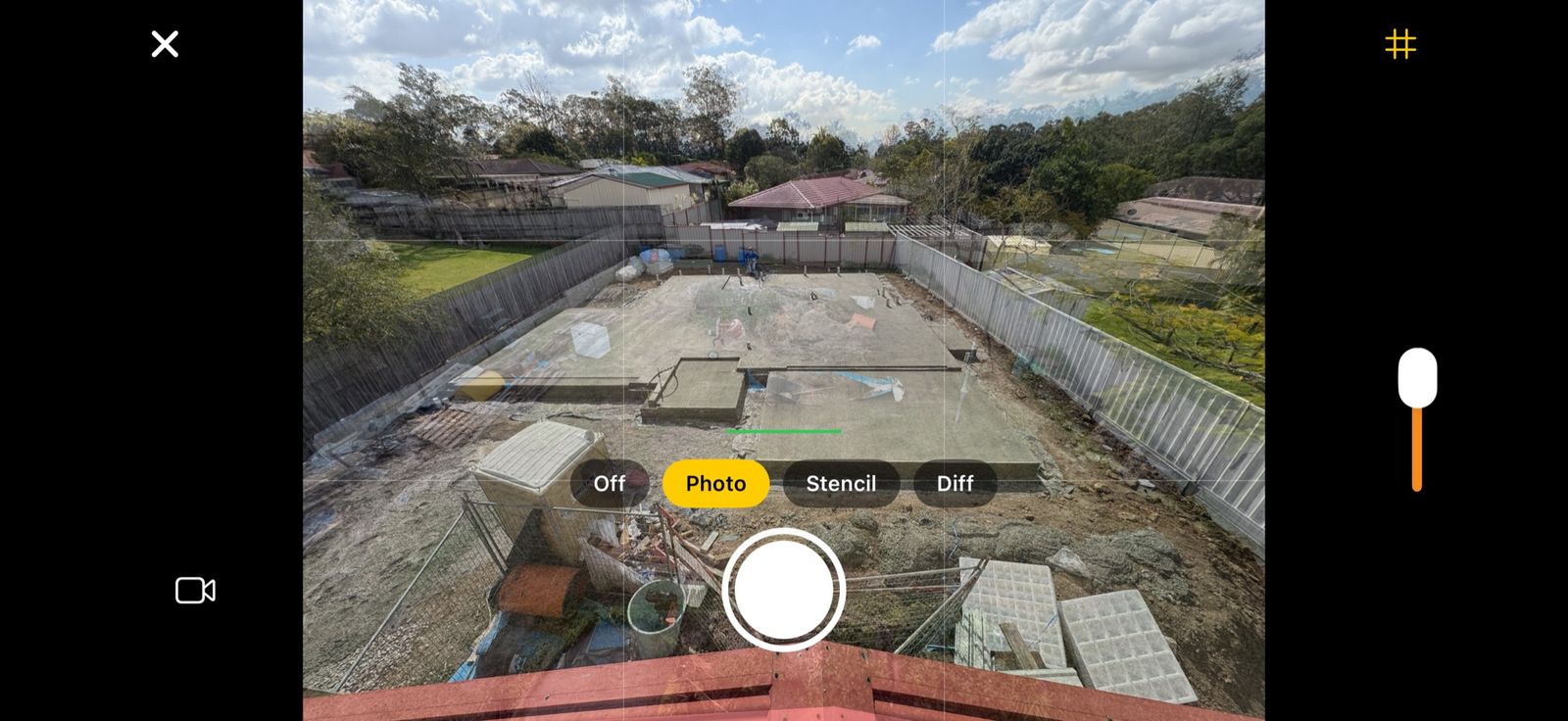
Gardens change slowly, then all at once. A photo from the same spot every day or week turns a season of growth into a few seconds of video. Plumb Daily is a garden progress photo app that lines up each photo with the first, so the plants move and the camera doesn't.
- No account
- No ads
- No tracking
- Photos processed on your device
This page covers what to record, where to stand, why the time of day matters so much in a garden, and how often to shoot.
What to record
- A new garden from bare soil – edging, soil, planting, mulch and the first flush of growth.
- A vegie patch from seed to harvest.
- A tree or garden bed through a full year – bare branches, new leaves, flowers and autumn colour.
- A landscaping job – new paths, retaining walls, turf and a hedge filling in.
- A recovery – a lawn coming back after a dry summer, or a bed growing back after a hard prune.
Where to stand
- Pick a spot you pass anyway. The back step, a verandah post or the kitchen window all work. If you shoot through a window, open it – glass adds reflections that change with the light.
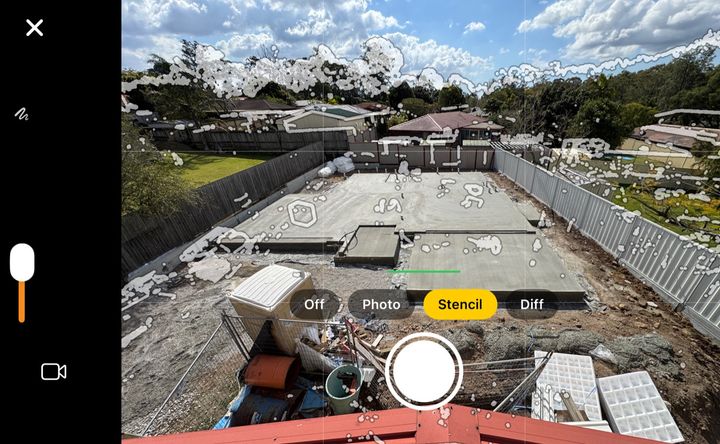
- Include something that won't grow. A fence, path, shed corner or garden edging gives you a steady reference. The stencil traces the main edges of your key photo. Line up with hard edges like these while the plants change around them.
- Leave room to grow. Frame the bed with space above and around it for the plants to fill.
- Hold the phone at the same height. The spirit level and grid help you keep it level and square to the bed.
- Choose portrait or landscape to suit. Portrait for a tree, landscape for a wide bed. Orientation locks for the scene.
Same time of day, every time
Light matters more in a garden than almost anywhere else. Shadows from trees, fences and the house sweep across a bed during the day. A photo at 8 am and one at 3 pm can look like different gardens.
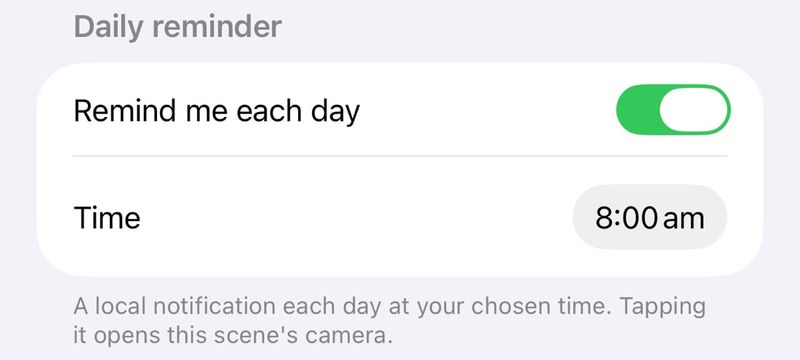
- Pick one time and stick to it. Set the scene's daily reminder for that time. Morning often suits a garden, with softer light and less wind.
- Wait for a still moment. Leaves and stems blowing about make a video look jittery.
- Welcome overcast days. Cloud gives the most even light. Full midday sun gives hard, dark shadows.
- Move your reminder when daylight saving changes. In the parts of Australia that use daylight saving, clocks go forward an hour in October and back an hour in April. The sun doesn't move with them. Move your reminder an hour later in October and an hour earlier in April to keep shooting in the same light.
- Expect longer shadows in winter. Even at the same clock time, the sun sits lower in winter. That's part of the story of the seasons.
Some days will still come out brighter or duller than others. The Mac app's export studio has a smooth exposure setting that evens out bright and dull days, so the finished video doesn't flicker.
How often to shoot
- Fast growth – daily. Seedlings, a spring vegie patch or new turf change visibly from day to day.
- Steady growth – 2 or 3 times a week. A new garden settling in, or a hedge filling out.
- A full year – weekly. A tree or bed through all 4 seasons. A year of weekly photos gives you 52, enough for a short time-lapse or a slideshow of the seasons.
- Keep a steady rhythm. Each photo gets the same screen time in a time-lapse. If you shoot daily for a month and weekly after that, the first month fills much of the video.
The capture planner for your photo schedule shows how many photos a schedule gives you and how long the video will run.
The features that matter most in a garden
- Stencil – an outline of your key photo's main edges, drawn on your phone, with a detail level you can adjust.
- See-through overlay – the key photo over the viewfinder, at an opacity you choose.
- Difference view – shows what has moved since the key photo. In a garden, that's mostly growth.
- Daily reminder – one per scene, at a time you choose.
- Time-lapse or slideshow – photos flick past at 2, 5, 10, 15 or 30 a second. Or each one holds for 1–5 seconds, with a transition to the next.
- Slow push-in – an optional, gentle zoom across the whole video.
- Moments – short videos of things a photo can't show, like grasses moving in the wind. They play at real speed. Moments you record in the app are video only, without sound.
- Add from library – older photos of the garden land on their original dates.
- Smooth exposure and Align All on the Mac – even out the light, and line every photo up with the key photo.
See how the stencil, overlay and difference view work and what the Mac app adds for reviewing and exporting. The same App Store listing covers iPhone and Mac. For the basics of a steady shot, there's a plain guide on how to align progress photos.
Example: a spring vegie patch
This is a made-up example to show how the routine fits together.
Say you build a raised vegie bed in early September and plant beans, lettuce and tomatoes. You live where daylight saving applies.
The morning you plant, you stand on the back step at 7 am. You turn the phone to landscape and frame the bed with its timber edging and the fence behind it. You leave room above for the tomatoes to climb. You take the key photo and set the scene's reminder for 7 am.
For the next 14 weeks you take a photo most mornings. On windy days you wait a few seconds for the leaves to settle. When daylight saving starts in October, you move the reminder to 8 am. On the day you pick the first tomatoes, you record a short moment.
By mid-December you have about 90 photos. At 10 photos a second, the time-lapse runs about 9 seconds, plus the moment at real speed. At 5 a second, it runs about 18 seconds. On the Mac you turn on smooth exposure, so the cloudy mornings don't flicker against the sunny ones, and add a slow push-in.
Landscaping for someone else?
If you build gardens for clients, a time-lapse is a clear way to show the finished job. Your photos stay on your phone and in your own iCloud until you choose to share the video.
Private by design
There's no account, no ads and no tracking. All the image work happens on your device, and Plumb Daily has no servers.
Plumb Daily is made in Australia by Matthew Sweet, who built it to record his own new home build.
Working on something else? See every kind of project Plumb Daily suits.
Planting soon?
You're on the list
You'll get one email when Plumb Daily is on the App Store. There's nothing else you need to do.