Features and how it works
How Plumb Daily keeps you aligned, every single day
Plumb Daily is a progress photo app for iPhone. Take a key photo, come back to the same spot, and the guides help you line up every new photo with the first. At the end, the app turns weeks or months of photos into one time-lapse or slideshow.
- No account
- No ads
- No tracking
- Photos processed on your device
Plumb Daily suits anything that changes over time: a new house, a renovation, a garden, a mural. There's no account, no ads and no tracking, and every photo is processed on your iPhone. The iPhone app needs iOS 18 or later, and there's a companion app for Mac.
This page follows one scene from the first photo to the finished video, in the order you'll use each feature. The screenshots come from Matthew Sweet's own house build.
How a scene comes together
- Take a key photo. It becomes the reference for every photo after it.
- Line up each new photo. Guides in the viewfinder show you where the key photo was taken.
- Record the big days as moments. Short videos play at real speed inside the finished video.
- Keep your photos in order. Leave out the bad days without deleting anything.
- Export the video. Pick a time-lapse or a slideshow, preview it and save it to Photos.
- Sync privately. Turn on Sync with iCloud, and your scenes move between your devices through your own iCloud, never through Plumb Daily servers.
I built Plumb Daily to record my own new home build. The aim was simple: every photo lined up with the first, and a video at the end that's worth watching.
– Matthew Sweet, Platform21
Step 1: Start a scene with a key photo
A scene is one project: a house build, a garden bed, a kitchen renovation. You can have as many scenes as you like.
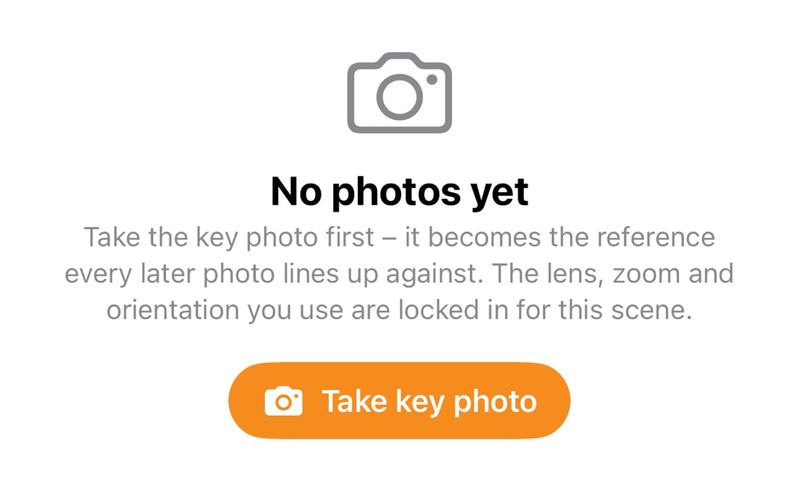
The first photo in a scene is the key photo. Think of it as your plumb line – the fixed reference that every later photo is checked against. If a better starting shot turns up, you can choose a different key photo later.
The camera locks to match the key photo
When you take the key photo, Plumb Daily locks the lens, zoom and orientation for that scene. Every later photo uses the same field of view as the first.
- Lens. The app uses one real, physical lens. It never uses a lens that switches by itself. An iPhone camera can change lenses on its own as you move closer or the light drops. That jump shows up as a sudden change in framing.
- Zoom. It stays where the key photo set it.
- Orientation. A scene can be portrait or landscape. The shutter is switched off while the phone is turned the wrong way, so a sideways photo can't slip in.
Add photos you already took
Started before you had Plumb Daily? Add photos or videos from your library. Each one lands on its original date, in the right place in the scene.
Choosing the spot matters as much as the app does. The guide to aligning progress photos so your time-lapse doesn't jump covers where to stand and what to line up with.
Step 2: Line up every photo with the key photo
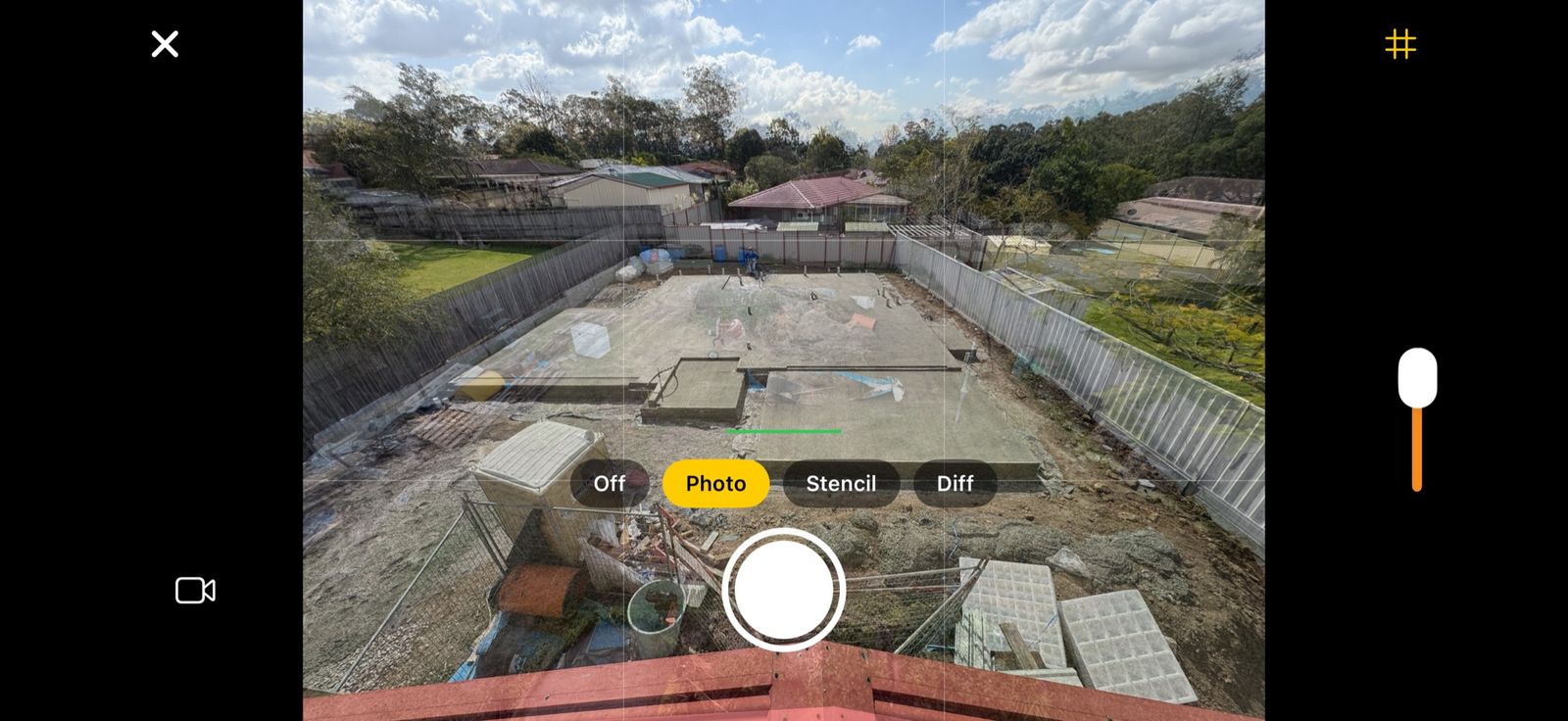
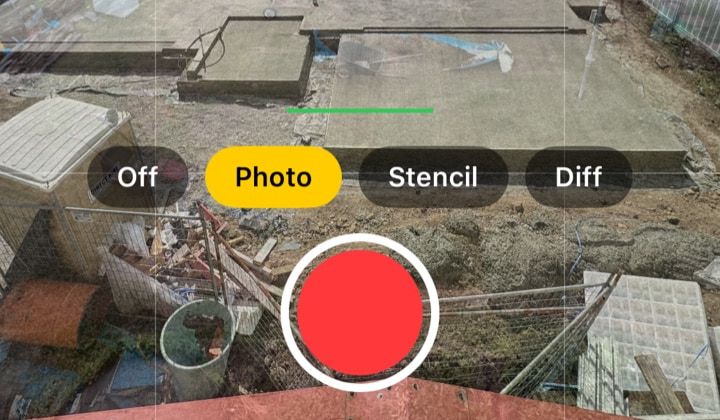
Each time you come back, the viewfinder shows you where the key photo was taken. Move until today's view matches, then take the photo. You can switch between 3 guides: the overlay, the stencil and the difference view. A grid and a spirit level help too.
See-through overlay
The key photo sits over the live camera view like tracing paper. It starts at 35 per cent opacity, and you can turn it up or down. Line up the things that won't change – the neighbour's roofline, a power pole, the kerb – then take the photo.
Stencil outline
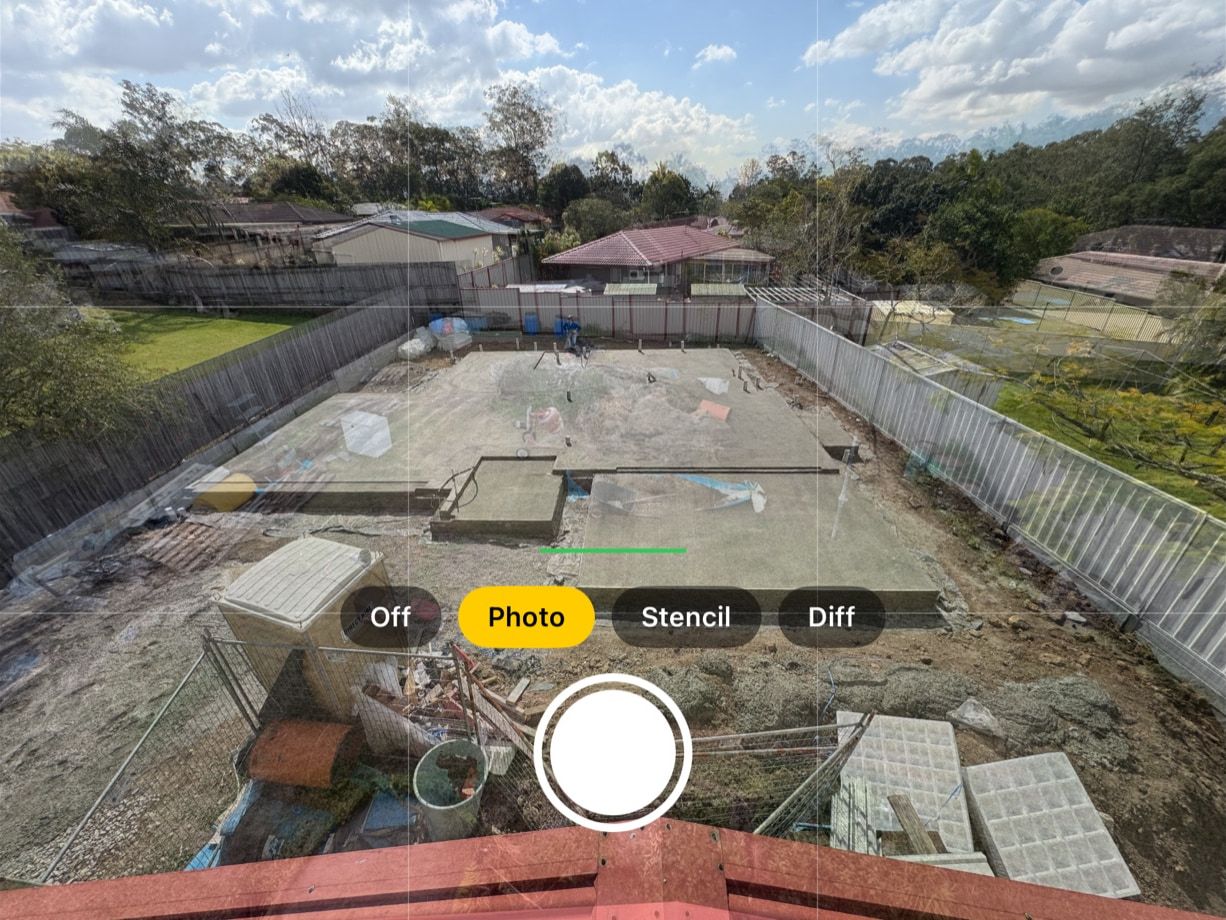
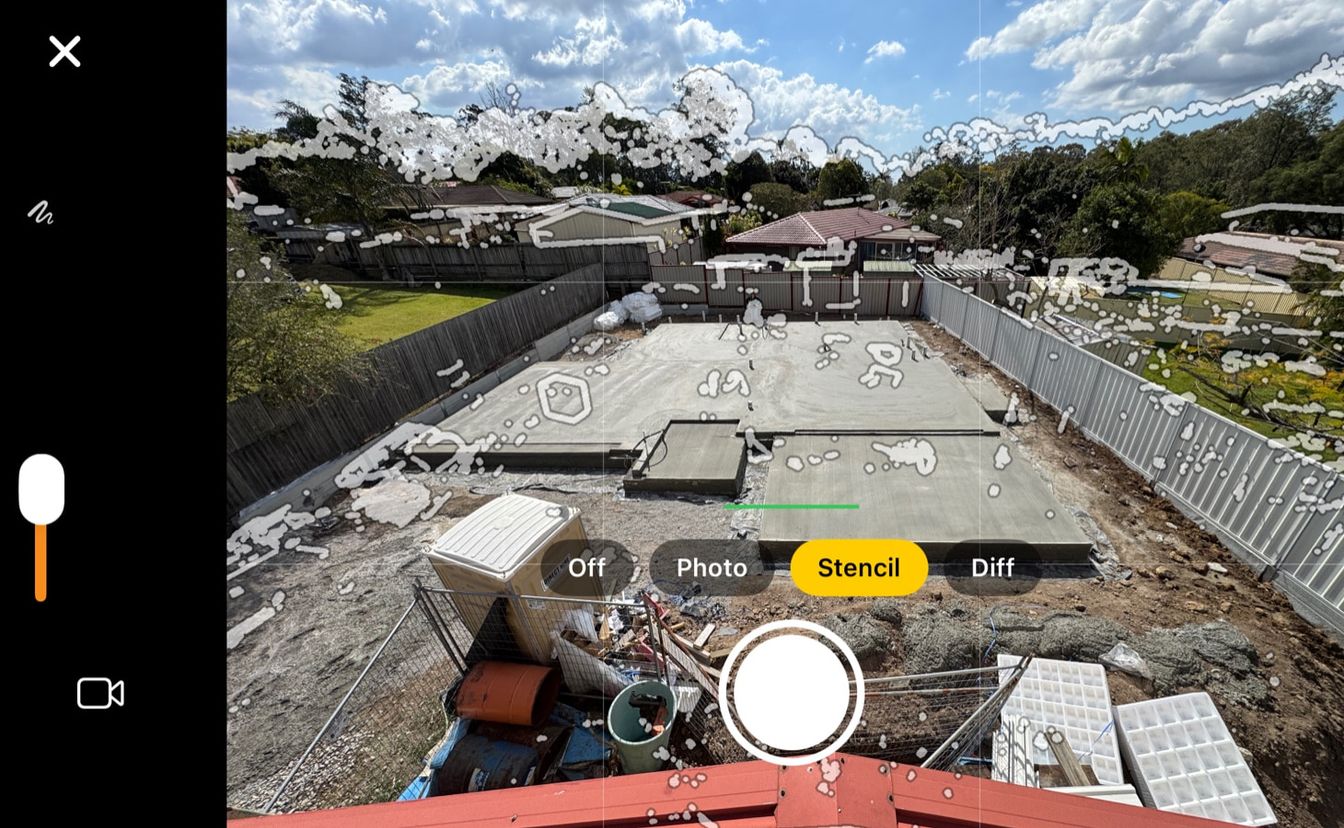
On a busy site, a see-through photo can look cluttered. The stencil traces the key photo's edges as white outlines instead. You set the level of detail: fewer lines for a messy view, more for a plain one. Trees still leave plenty of marks, so line up with the hard edges – fences and roofs – not the treetops.
Your iPhone draws the stencil itself. The key photo never leaves the device to make it.
Difference view
The difference view shows what has moved. Anything that matches the key photo goes dark, and anything out of place shows up bright. When the fixed parts of the view go dark, you're lined up, and only the new work stands out.
Grid and spirit level
A grid over the viewfinder helps you keep the horizon and other strong lines in the same place in the frame. The spirit level shows when the phone is level, so the view doesn't tilt from one day to the next.
Photos drift for all sorts of reasons over a long project.
A daily reminder for each scene
Set a reminder for each scene, at a time you choose. It arrives as a notification on your iPhone, so a busy day doesn't mean a missed photo. The phone schedules the reminder itself – nothing goes through a server.
Taking the photo at about the same time each day also keeps the light and shadows similar. That makes for a steadier video.
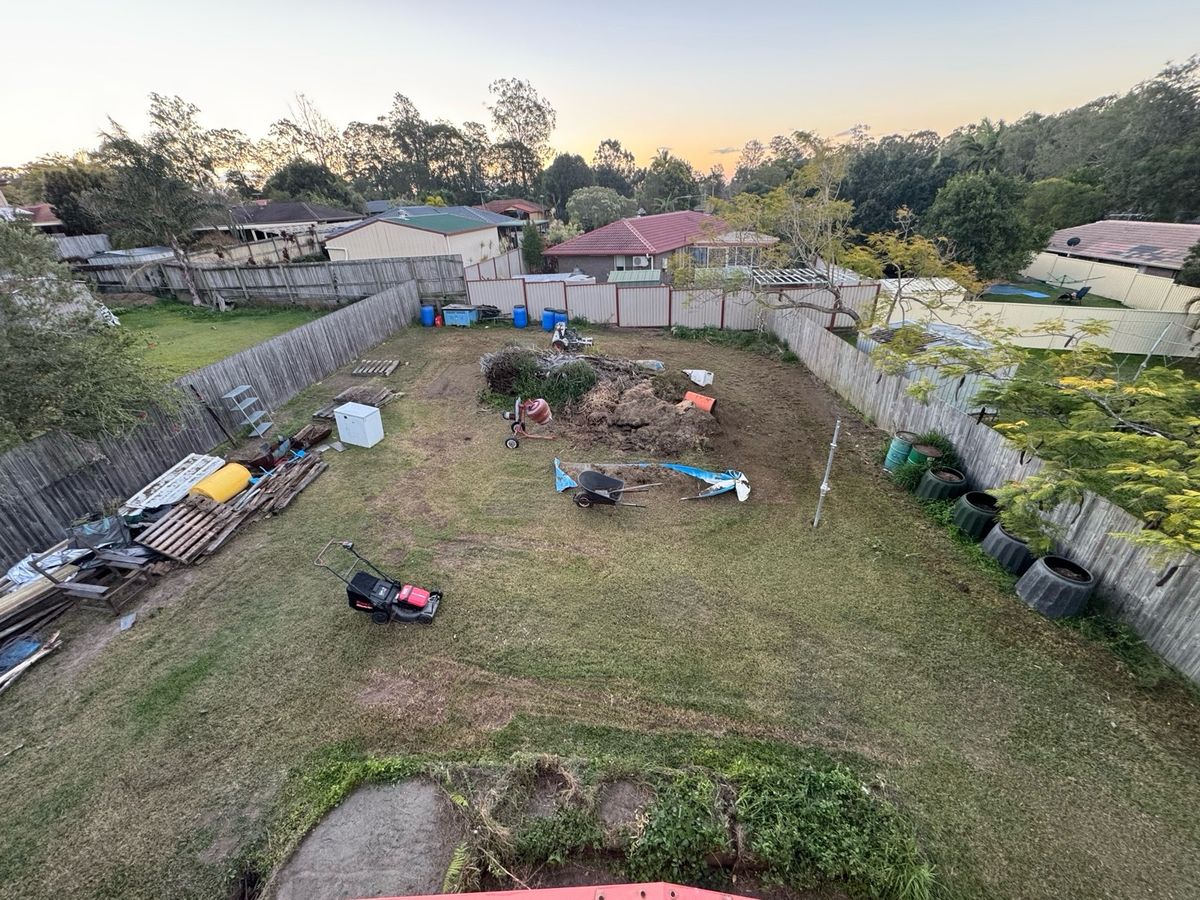
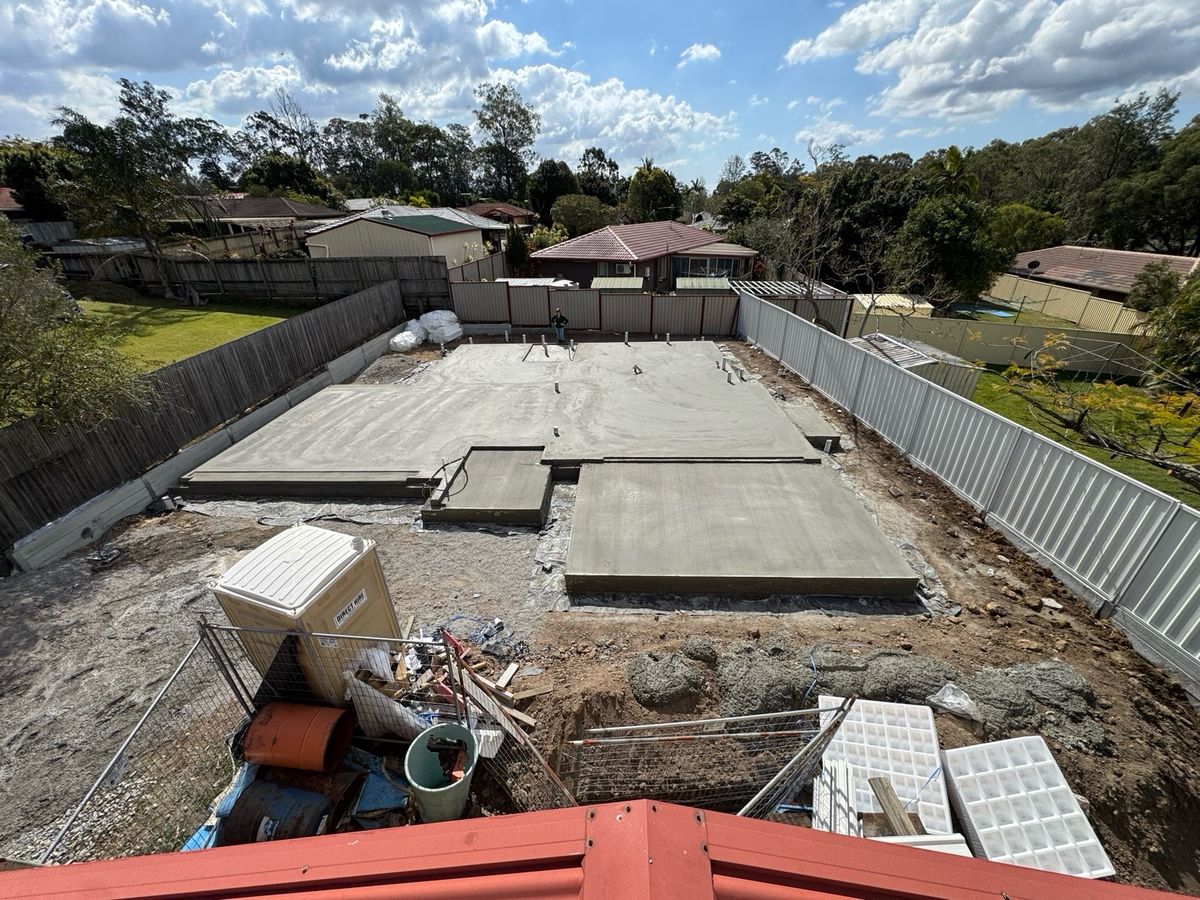
The same view from the roof, 24 days apart
Step 3: Record the big days as moments
Some days deserve more than a still photo: the slab pour, the crane lowering a roof truss, the scaffold coming down. A moment is a short video of a day like that.
You record a moment with the same overlay and stencil guides, so it's framed like the photos around it. You can also add a video you already took.
In the finished video, a moment plays at real speed between the photos either side of it. You can trim its start and end without changing the original.
Moments and sound
Be clear on this before the big day:
- Moments you record in Plumb Daily have no sound. The app records video only, and it never asks for your microphone.
- Videos you add from your library keep their sound in the finished video. So do videos you drag in from Finder on the Mac.
Want the rumble of the crane in your video? Film it with the iPhone Camera app, then add it to the scene from your library.
Step 4: Keep your photos in order
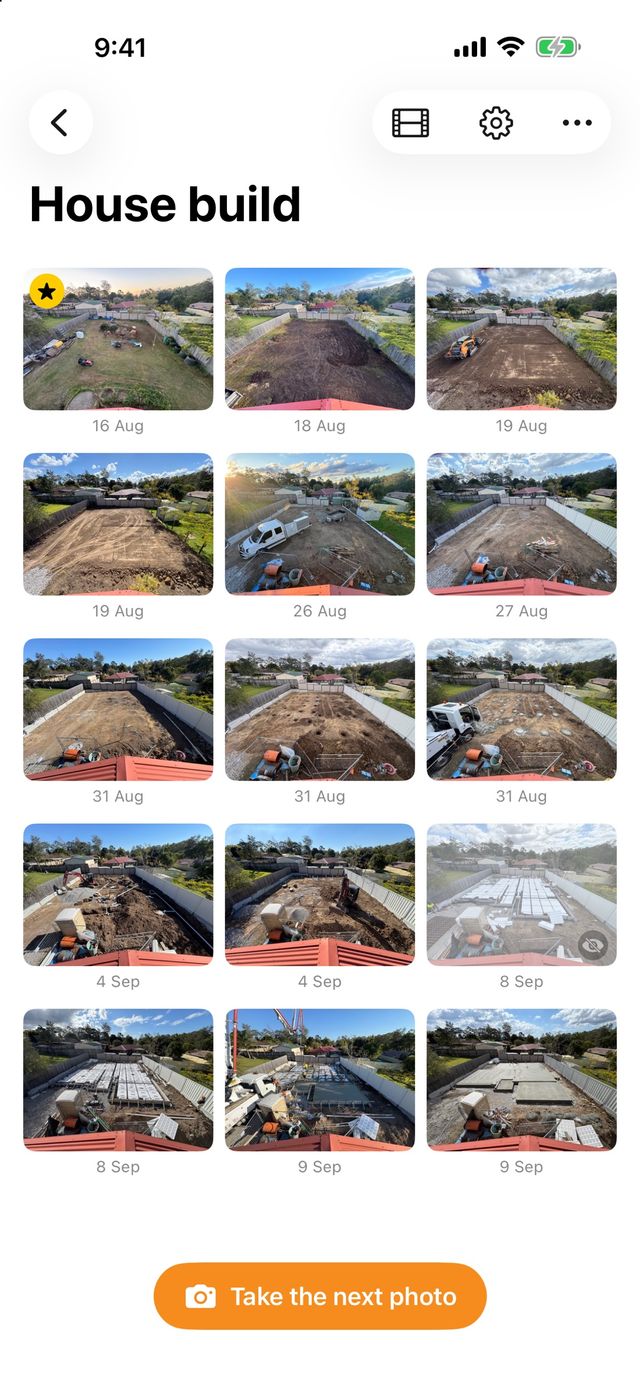
- Timeline. A grid shows every photo in the scene, labelled with its date.
- Full screen. Swipe through photos one at a time, and pinch to zoom in on the detail.
- Leave a photo out. Drop the blurry one, or the day a truck parked in front, from the video without deleting it. It stays in the scene.
- Photos library. Every photo is also saved to your Photos library, and to an album for the scene if you want one.
Step 5: Export a time-lapse or a slideshow
When you're ready, turn the scene into a video. You can do this on your iPhone or on your Mac.
Choose a style
| Style | How it plays | Speed |
|---|---|---|
| Time-lapse | Photos flick past quickly | 2, 5, 10, 15 or 30 photos a second |
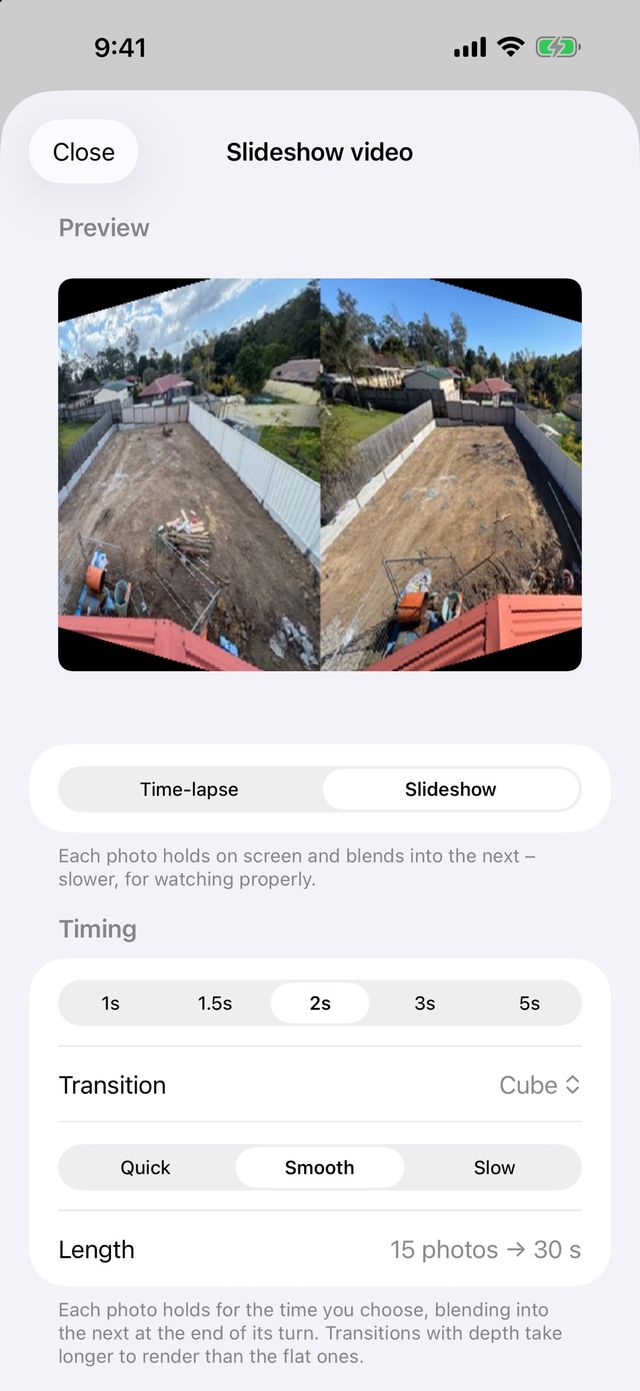
| Slideshow | Each photo holds, then a transition leads to the next | 1, 1.5, 2, 3 or 5 seconds a photo |
A time-lapse suits a long project with hundreds of photos. A slideshow suits a shorter one, or a video where each stage should stay on screen long enough to take in.
Not sure how long your video will run? Plan your capture schedule with the capture planner. Enter how long your project will run and how often you'll shoot. It works out your photo count, your video length and a speed that suits it.
Pick a transition
A slideshow joins each photo to the next with a transition. Choose from:
- cut, dissolve, fade through black, push, slide over or reveal
- the depth transitions: zoom through, flip or cube.
Add a slow zoom
Choose Gentle zoom on your iPhone, or turn on Slow push-in on your Mac, and the view eases gently closer across the whole video. It's often called the Ken Burns effect. It adds a little movement to a view that otherwise stays still.
Preview before it renders
A live preview plays your video before it renders, transitions included. Try a different speed or style and see the change before you commit.
Where your video goes
- The video is an MP4 file in HEVC, a compact, high-quality video format.
- It's 4:3 or 3:4 to match the scene, up to 2880 × 2160.
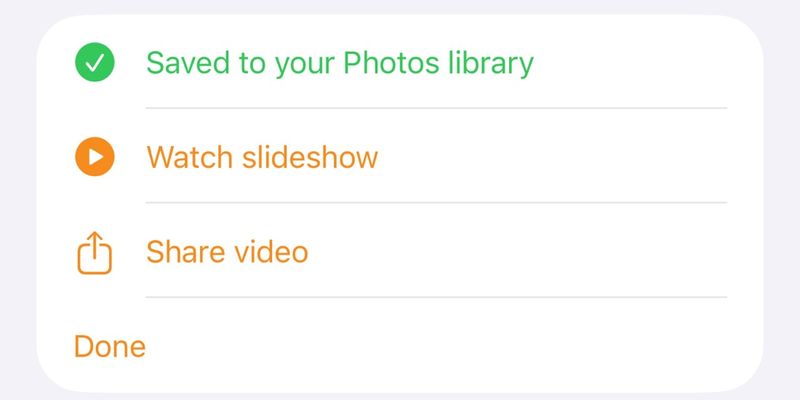
- It saves to your Photos library, and a shelf in the app keeps your saved time-lapses together.
- Keep Plumb Daily open while a video renders on your iPhone. iOS stops video rendering in the background, so the app keeps the screen awake while it works.
Step 6: Sync privately through your own iCloud
Progress photos of your home are personal. Plumb Daily treats them that way.
- No account. There's nothing to sign up for. Open the app and start a scene.
- No ads and no tracking. The app has no analytics of any kind.
- No Plumb Daily servers. Your photos never go to the developer.
- Done on your device. The stencil, the alignment and the video are all made on your iPhone or Mac.
- Synced through your own iCloud. Your scenes sync between your iPhone and Mac through Apple's CloudKit private database. That's private storage for apps, inside your own iCloud account. Only you can see it. The developer can't.
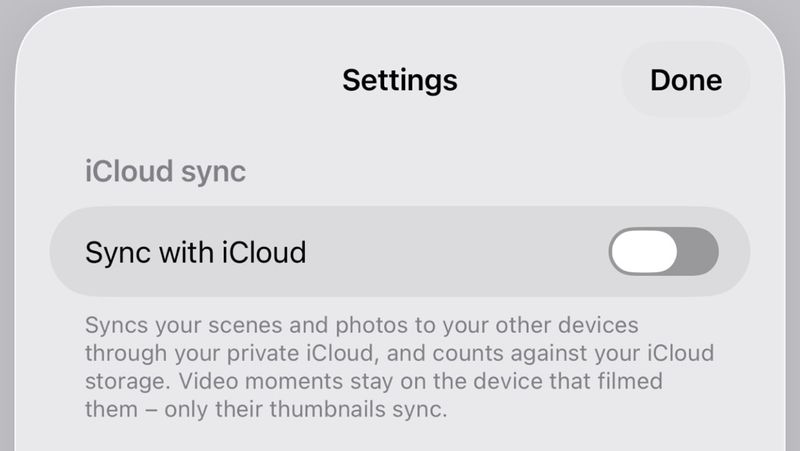
On a single device, you don't need iCloud at all. To sync between devices, you do.
Moment video files are the one exception to sync. They don't go through iCloud – only a preview frame does. On the Mac, you can fetch a moment's video from your iCloud Photos library, or link the file by hand.
What the app asks for
| Permission | Why |
|---|---|
| Camera | To take photos and record moments |
| Photos | To save your photos and, if you like, keep an album for each scene |
| Notifications | For daily reminders, and only if you turn them on |
Plumb Daily never asks for your microphone or your location.
The Plumb Daily privacy policy sets out what the app and this website collect.
Review and export on your Mac
Months of photos are easier to sort through on a big screen. The Mac app adds tools the phone doesn't have:
- Compare any 2 days side by side, with a wipe or as a difference view. Or use onion skin: one photo laid over the other, see-through.
- Align All lines every photo up with the key photo, on your Mac. A nudge editor lets you move, turn or scale any photo by hand. Your iPhone's exports use the same alignment.
- The export studio adds a date stamp, smooth exposure to even out bright and dull days, and HD or 4K output.
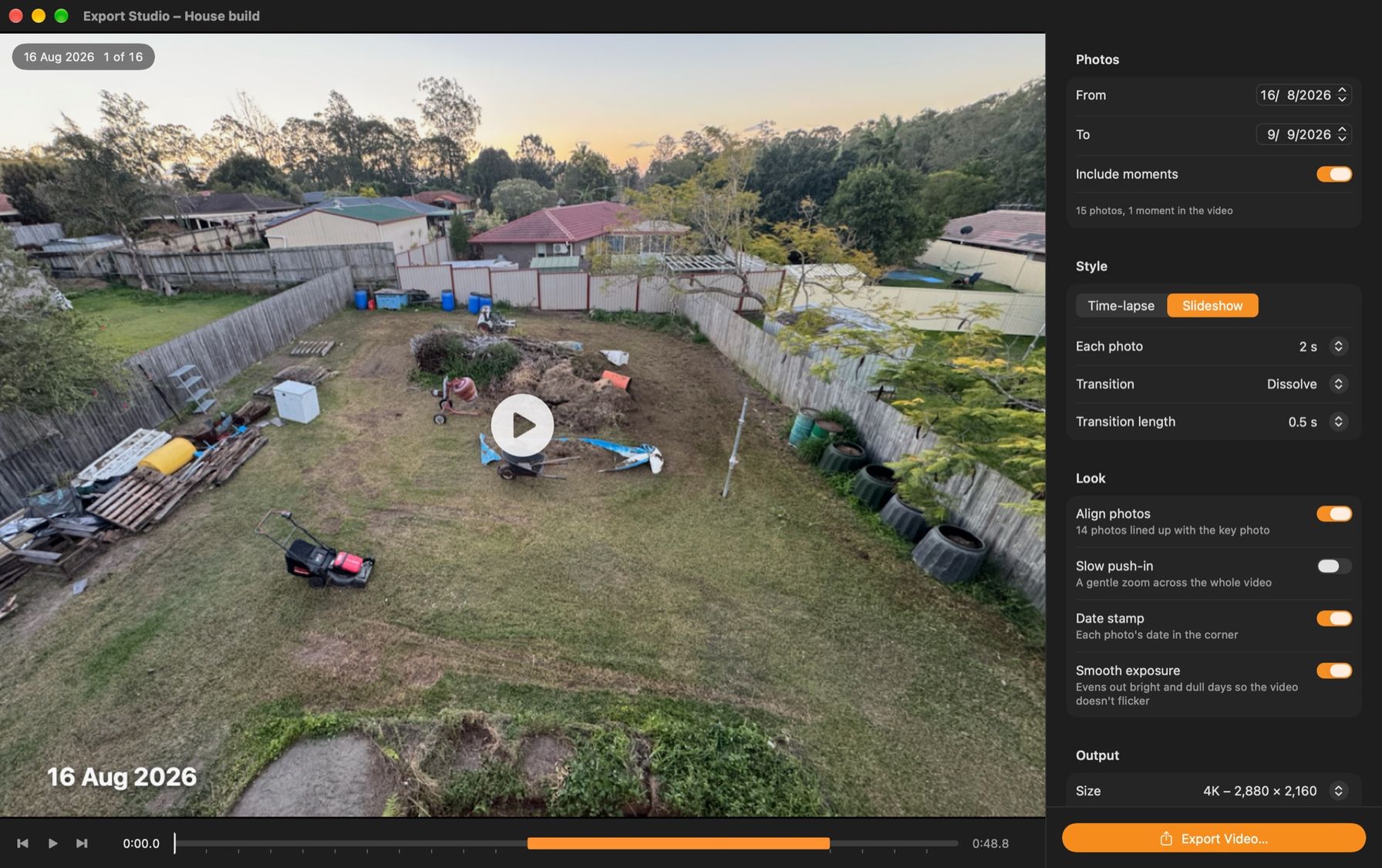
The same App Store listing covers iPhone and Mac. See how browsing, comparing and exporting on the Mac fits in with the phone.
Built for projects that take time
The same routine works for anything you can photograph from the same spot over days, weeks or months:
- progress photos for a new home build, with a builder or as an owner-builder
- renovations and extensions, from the first demolition photo to the final coat of paint
- gardens and landscaping, through a full season of growth
- murals, art and other hobby projects that run for weeks
- tradespeople and small builders showing clients how a job is going.
Try it when it's ready
Plumb Daily is in beta testing now, on iPhone and Mac. Join the waitlist and you'll get one email when it's on the App Store.
Frequently asked questions
Do I need a tripod?
No. The overlay, stencil, difference view and spirit level are there so you can line up each photo by hand. It helps to mark your spot – a peg in the ground, a fence post you stand beside or a crack in the footpath.
Can I change the key photo later?
Yes. You can choose a different photo in the scene as the key photo at any time.
Do moments record sound?
No. Moments you record in Plumb Daily are video only – the app doesn't record sound, and it never asks for your microphone. Videos you add from your library keep their sound in the finished video.
Does Plumb Daily upload my photos?
No. There are no Plumb Daily servers, and all image processing happens on your device. If you use more than one device, your scenes sync through your own iCloud account, where only you can see them.
When can I get Plumb Daily?
Plumb Daily is in beta testing on iPhone and Mac through TestFlight, Apple's app for testing apps before release. It isn't on the App Store yet. Join the waitlist and you'll get one email when it is.
Hear when Plumb Daily is on the App Store
You're on the list
You'll get one email when Plumb Daily is on the App Store. There's nothing else you need to do.