For murals, art and other long projects
Some projects change over an afternoon. Others take months of weekends. A mural, a model or a jigsaw puzzle makes a good time-lapse, as long as every photo comes from the same spot. Plumb Daily is a time-lapse app for hobby projects that lines up each photo with the first, then turns them into one video.
- No account
- No ads
- No tracking
- Photos processed on your device
This page covers what to record and how to set up for projects that take hours or weeks. It also covers where to put the phone and how fast the video should play.
What to record
- Murals and wall art – from the bare wall to the last detail.
- Paintings and drawings on an easel or a desk.
- Scale models and kits – from the first parts to the finished model.
- Jigsaw puzzles – the edge first, then the middle filling in.
- Quilts, knitting and other textile work.
- Furniture or car restorations in the shed or garage.
If it changes over hours or days and you can photograph it from one spot, it will work.
Pick a routine: hours or weeks
Projects that take hours
A painting session, a jigsaw over a weekend or a model kit in a day.
- Fix the phone in place. A phone stand or small tripod keeps the view steady between photos.
- Take photos at natural breaks. Plumb Daily doesn't take photos on a timer – you tap the shutter each time. Every 15–30 minutes, or each time you step back to look, works well.
- Keep the light the same. Use the same lamp, and close the curtains if daylight is fading. Window light changes colour and brightness through the afternoon.
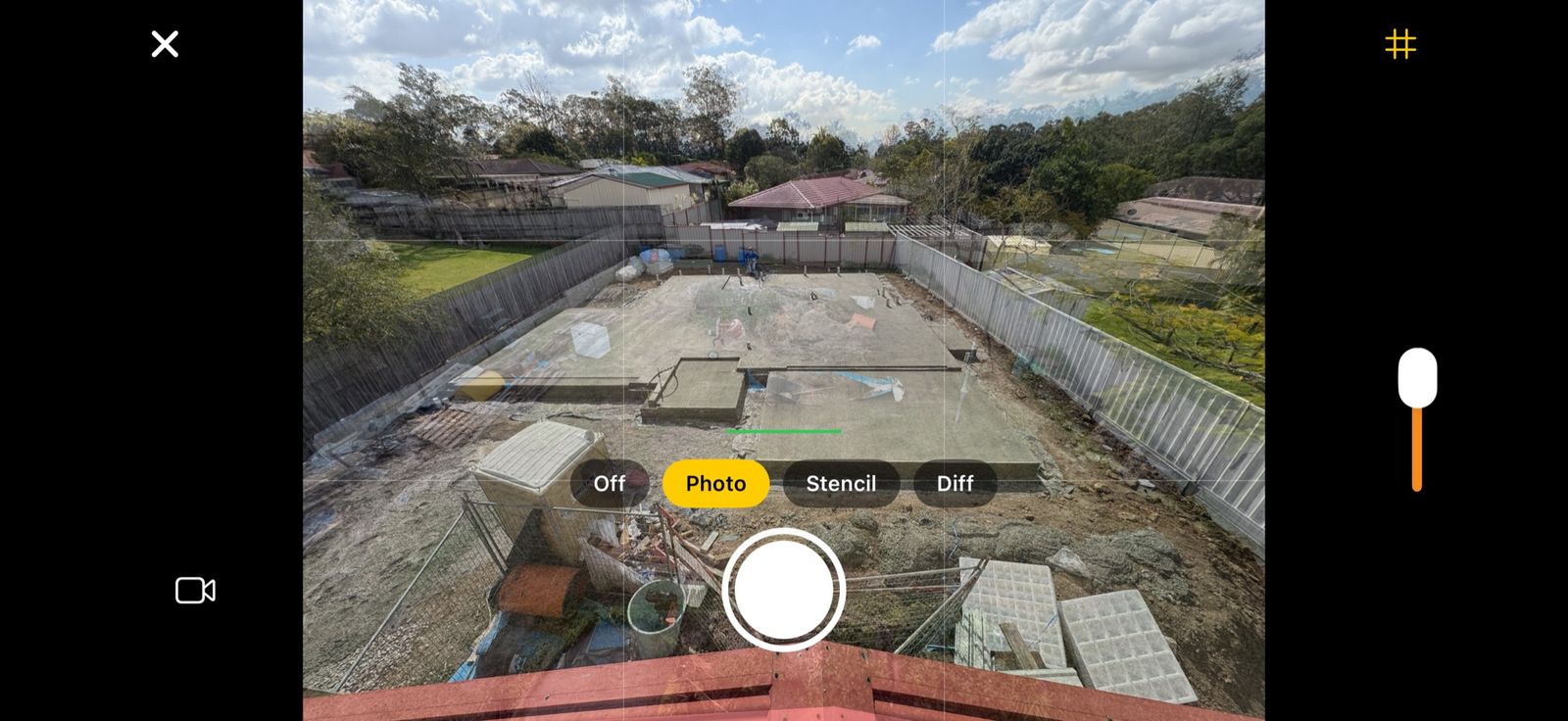
- If you bump the phone, line it up again. The see-through overlay shows the key photo over the viewfinder, so you can put the phone back where it was.
Projects that take days or weeks
A mural over several weekends, a quilt or a restoration.
- Take a photo at the end of each session, or at the start and the end.
- Set a daily reminder for the time you usually finish. Each scene has its own.
- Put the phone away between sessions. The key photo, overlay and stencil get you back to the same spot next time.
Where to stand, or where to put the phone
- Murals. Choose a spot across the street or lane that you can find again, next to something fixed like a pole or a kerb. Frame the whole wall with a little margin. Outdoor walls change with the sun, so shoot at a similar time each day. Overcast days give the most even light.
- Tabletop projects. Shoot from above for a jigsaw, or from a low angle for a model. Pick portrait or landscape to suit the table – it locks for the scene.
- Workshops and garages. A corner that stays clear works best. Turn on the same lights each time.
The grid helps you keep the edges of a canvas or table square in the frame.
Choosing a speed for the video
How long your video runs depends on how many photos you take and how fast they play.
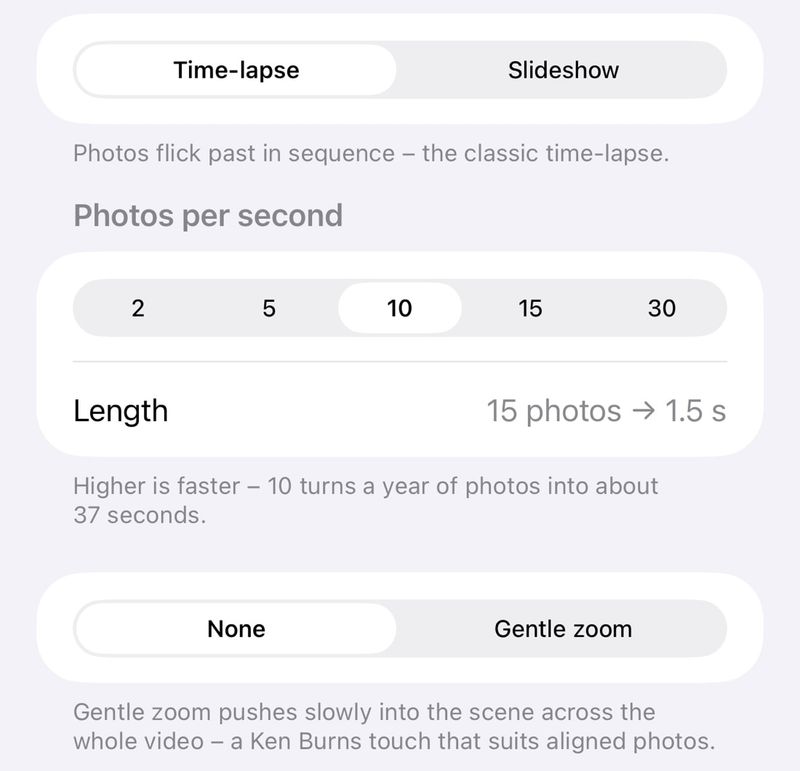
- Time-lapse plays 2, 5, 10, 15 or 30 photos a second. Hundreds of photos from long sessions suit the faster speeds: 240 photos play for 8 seconds at 30 a second. A few dozen photos suit the slower ones: 48 photos play for about 10 seconds at 5 a second.
- Slideshow holds each photo for 1–5 seconds, with a transition such as a dissolve, push or cube. It suits fewer, bigger steps – say, one photo per session.
- Gentle zoom eases slowly closer across the whole video. On the Mac it's called Slow push-in.
- Live preview lets you watch the video, transitions included, before it renders.
Try the photo capture planning calculator to see your photo count and video length before you start.
The features that matter most for hobby projects
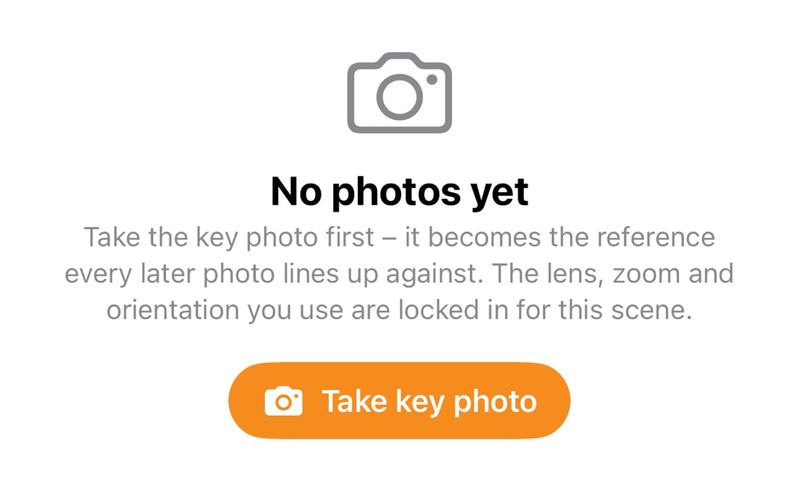
- Key photo and locked lens – the same lens, zoom and orientation every time.
- See-through overlay and stencil – put the phone back where it was after you move it.
- Grid and spirit level – keep the frame square and level.
- Moments – the last puzzle piece going in, or the final brush stroke, at real speed. Moments recorded in the app are video only, without sound. To talk through the finished piece, film it with the Camera app and add it from your library. Videos you add keep their sound.
- Leave a photo out – drop the shot with your arm in the way, without deleting it.
- Bring in photos from a camera – on the Mac, drag photos and videos in from Finder, including folders from a camera card. Camera RAW and TIFF files are converted to HEIC so your iPhone can open them.
- Align All on the Mac – lines every photo up with the key photo and flags any it can't match confidently. A nudge editor lets you fix a photo by hand.
See the overlay, stencil and grid in detail, or the Mac app's import, alignment and export tools. The same App Store listing covers iPhone and Mac.
Example: a garage-door mural over 2 weekends
This is a made-up example to show how the routine fits together.
Say you're painting a mural on your garage door over 2 weekends – 4 painting days in all. The door faces south, which in Australia means it sits in shade most of the day and the light stays even.
Before the first coat of primer, you stand by the letterbox, where you can see the whole door. You turn the phone to landscape, frame the door with a little margin and take the key photo.
Each painting day runs about 6 hours. You step back every 30 minutes or so to look at the work, and take a photo each time – about 12 a day. In 2 of the photos the ladder blocks the door, so you leave them out of the video. On the last afternoon, you record a moment of the final brush stroke.
That leaves about 46 photos. At 5 photos a second, the time-lapse runs about 9 seconds, plus the moment at real speed. You add a slow push-in, so the video finishes a little closer to the door than it started.
Private by design
There's no account, no ads and no tracking. Your photos stay on your devices and in your own iCloud, and Plumb Daily has no servers.
Plumb Daily is made in Australia by Matthew Sweet, who built it to record his own new home build.
Working on something else? See every kind of project Plumb Daily suits.
Got a project in mind?
You're on the list
You'll get one email when Plumb Daily is on the App Store. There's nothing else you need to do.